Phew! Another version!

June 13th, 2013 — 1:39pm

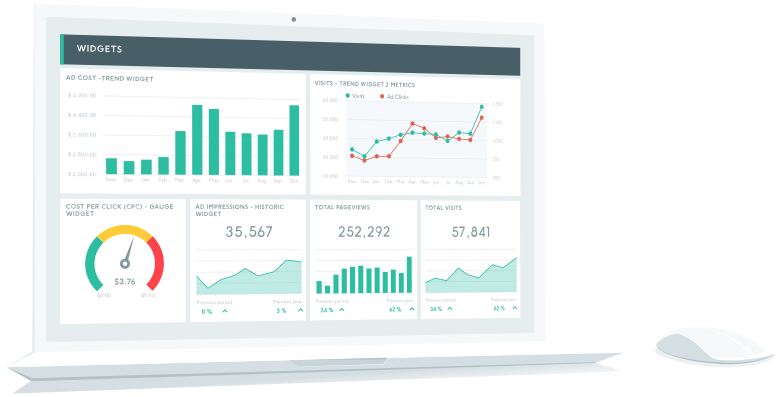
DashThis is on a roll! We’ve released yet another upgrade! As you have come to expect, we’re always on the lookout for new ways to improve DashThis—your go-to solution for painless reporting of your online marketing efforts. To make your reporting a living heaven, here are the latest improvements we’ve made:

  • Automated email dispatch of your reports: send your dashboards when you want..to whoever you want!
  • New view to track ad campaign performance against a comparison period
  • New manually editable data widgets
  • New data source: Marchex Call Tracking (available in the standard version)
  • Update of our PDF export feature including A4 format support
  • Many design and user interface improvements
  • Optimization of our core infrastructure. In plain English, that means better performance, scalability,
    stability, and security for our customers! In plainer English, you’ll continue to sleep well at night.

» To try out our new version, click here.

Comment » | The company

Use Groups to Link Dashboards and Reports Together

May 30th, 2013 — 4:09pm

One underused great feature of DashThis is the report grouping. Indeed, it doesn’t look like we need this beforehand. But once we’ve taught a client how and why to use this, it changes a lot of things.

First, the Why.

Naturally, we are used to put information vertically. That means we will put as many KPIs as we can in a report. It makes sense for the analyst, but for the reader, too much information tends to kill information. Heavy reports with lots of KPIs are scary!

On the other hand, if we split a long report into smaller chunks and display several reports horizontally, it become way easier to read (and to understand).

Then, the How.

Well, it couldn’t be simpler. You select any dashboard on the left side of your administration window. Then you drag them to the top box on the right side where it’s written “Drag dashboards here to create groups”.

Once dropped, a group is created and you get a new URL. This is the URL you use to access the group. Notice the navigation tabs at the top.

It’s as simple as that. Now you can create smaller reports easier to digest and still be able to get the information quickly by switching between reports.

Comment » | Tutorials

Integrate Avanser Call Tracking into your Google Analytics Dashboard

May 15th, 2013 — 9:19am

Avanser is a great Australian call tracking system which is used by many of our clients. Adding call tracking data into their dashboard is a really cool feature for them. However, it is sometime laborious to integrate call tracking systems using an API.

Fortunately, Avanser connects their data into Google Analytics directly using Events. The tough job being done, it’s really simple to hook Avanser call data into your DashThis dashboard.

Basically, there are two types of information you can get from Avanser Google Analytics Events:

#1 Call source:

Avanser uses the Event Action element to insert the AdSource name for each specific call. Thus, to get a list of call sources in your dashboard you would simply do this:

Metric: ga:totalEvents
Dimension: ga:eventAction
Filter: ga:eventCategory=@AVANSER

#2 Call status:

Avanser uses the Event Label element to insert the status for each specific call. Those values can be Answered, Unanswered or Abandoned. Let’s say you want a pie chart showing calls by status then you’d do this:

Metric: ga:totalEvents
Dimension: ga:eventLabel
Filter: ga:eventCategory=@AVANSER

What about having a simple number widget to show all answered calls?

You’d go with that:

Metric: ga:totalEvents
Filter: ga:eventCategory=@AVANSER;ga:eventLabel==Answered

As you can see, it’s really easy and straight forward to integrate Avanser call tracking data into your dashboard because of its Google Analytics integration.

One little point though: It seems that we can’t get the Average Call Duration from events. It would be interesting to be able to get this information.

Comment » | Dashboards

How To Create a Google Analytics Master Dashboard For All Your Clients

May 9th, 2013 — 12:31pm

Wouldn’t that be great if you could see in a snap all your clients’ performance? Well, you can do this easily with DashThis.

To start with, when you create a report you have to connect data sources to it. In the case of a master dashboard, you would select your clients’ Google Analytics profiles.

By default, when there is more than one Google Analytics profile, the data will be aggregated. So let’s say Profile A has 2 visits and profile B has 5 then the KPI will show 7 visits.

Using the Advanced Editor you can create KPIs using only one data source. So you would create a KPI for Profile A and another KPI for Profile B. They would show 2 and 5 visits respectively.


That’s it!

And this is not only for Google Analytics, but all other data sources like Facebook Insights, Adwords, Youtube and so on.

Comment » | Dashboards

Integrated Security Using our Authentication API

April 22nd, 2013 — 7:53pm

DashThis uses heavily encrypted URLs to provide a high level of security. However, we understand how tricky this matter can be for a variety of clients. Many feel more secure behind a password-protected environment. This is why we offer integrated security using our authentication API.

There is no need for a complex mechanism. You simply handle your clients’ authentication within your Intranet. Then, ask for a secured token via our API. This token will be required to access all of your dashboards. It’s as easy as that!

The API is not public and is offered exclusively to our partners. Contact us for more information.

Comment » | Dashboards, The company

Create a Top Converting Goals KPI for Google Analytics

April 9th, 2013 — 4:35pm

Ever wanted to get the Google Analytics Top Converting Goals into a dashboard, but couldn’t figure out how? We’ve been asking this often those past months. That’s why we included a widget ingeniously named “Top Converting Goals”. It does what it says: Display a list of the Top converting goals. Brillant, isn’t it?

Now how do you do this?

Simple.

When you are in a dashboard, go into the edit mode (“Edit” at the top right). Hover on the “Indicator” button and go down to the Goals category. You click “Top Converting Goals” and wait until it populates.

That’s it. Simple eh?
» Get your Google Analytics dashboard with a Top Converting Goals widget now

Comment » | Dashboards, Tutorials

Custom Analytics Dashboards And Reports? We Love That!

March 21st, 2013 — 2:03pm

One thing that have contributed to our success from the beginning is that we welcome custom projects unlike a lot of software vendors who see service as the demon.

Actually, we love custom projects! The reason is that all those projects we have done have helped us improve our product greatly.

Thus, we now have an expertise at developing custom projects for any kind of organizations whether it’s an hospital, a Web agency or a digital publisher.

Custom Projects for Google Analytics, Adwords, Facebook Insights and More

We can do custom dashboards or reporting projects to fit any need whether it involves Google Analytics, Adwords, Facebook Insights, Twitter, Youtube, any more underground third party service provider as well as any in-house system. We do not fear to integrate our tool into your organization!

We don’t only want to sell our product. Custom projects are in line with our core values which include serving a client the best we can. Plus, we have fun doing so!

Learn more about our custom solutions or drop us a line!

Comment » | Dashboards, The company

Create a Branded or Non-Branded Google Analytics Filter

March 11th, 2013 — 1:41pm

One of the most frequent question we’ve been having since the launch of the new version is how to create a KPI to show branded or non-branded performance.  This could be use for a Leads KPI as well as a Visits, Bounce Rate, Transactions or any metric you have in mind. I agree, this is useful for a lot of SEO agencies willing to demonstrate the value of their work.

This can be done using Google Analytics API filters and our Advanced KPI Editor It’s quite simple actually.

Let’s say you want to create a Branded KPI and include terms like “DashThis, Trimali, Dash This”. The filter would go like this:

ga:keyword=~(DashThis|Trimali|Dash This)

It’s as simple as that.

Non-branded? Simply use the “exclude” regular expression operator: !~ instead of the “include” one : =~

ga:keyword!~(DashThis|Trimali|Dash This)

That’s it.

To be sure you have only traffic from organic search, you could add the medium filter:

ga:keyword!~(DashThis|Trimali|Dash This);ga:medium==organic

Or for Paid Search

ga:keyword!~(DashThis|Trimali|Dash This);ga:medium==cpc

We can even create branded and non-branded queries within the same KPI (see below). This one is custom work at this time. Contact us for more information.

Need help to create a filter? We are here to help you. Just drop us a line :)

Comment » | Dashboards, Key Performance Indicators (KPI), Tutorials

We’ve pimped your DashThis!

March 6th, 2013 — 12:08pm

We’re über excited to announce the latest version of DashThis—your easy-peasy solution for painless online reporting.
Thanks to all of your invaluable feedback, here are just some of the latest improvements we’ve added to the standard version of DashThis:

  • Fully visual editor
  • Wide variety of graph displays, such as pie, line and bar graphs, gauges, and more
  • Multiple data sources: Adwords, Facebook, Twitter, etc
  • Many easy-to-add KPIs and an advanced editor
  • Simplified data aggregation, consolidation, and management
  • PDF export
  • Dashboard grouping

What’s more: our platform is even more flexible for custom project. Contact us today to find out more information on our white labeling solutions.

To try out the new version, click here.

Existing users: you’ve been upgraded!

Most existing accounts have been switched to our new version. Simply register to access the new version—and it should work without a hitch.
If you need to keep access to our legacy version, you will have create an account with a different login from the one used in the previous version. Please contact us for more details.

If you have questions, comments or suggestions, don’t hesitate to drop us an email. We value your input!

» Visit DashThis’s website

Comment » | The company

DashThis is now an approved Adwords API developer

October 23rd, 2012 — 10:21am

Great news! We’ve been using Google Adwords data for a while so far. Now DashThis is an approved Adwords API developer. What does that mean? Well, it means that we can build your personalized report solution integrating Adwords. The data now comes directly from their API instead of mostly using Adwords integration within Google Analytics.

Comment » | Uncategorized

Back to top